# How to edit an image using Google Gemini
### Overview
This documentation provides a step-by-step guide on how to edit an image using Google Gemini integration within our platform.
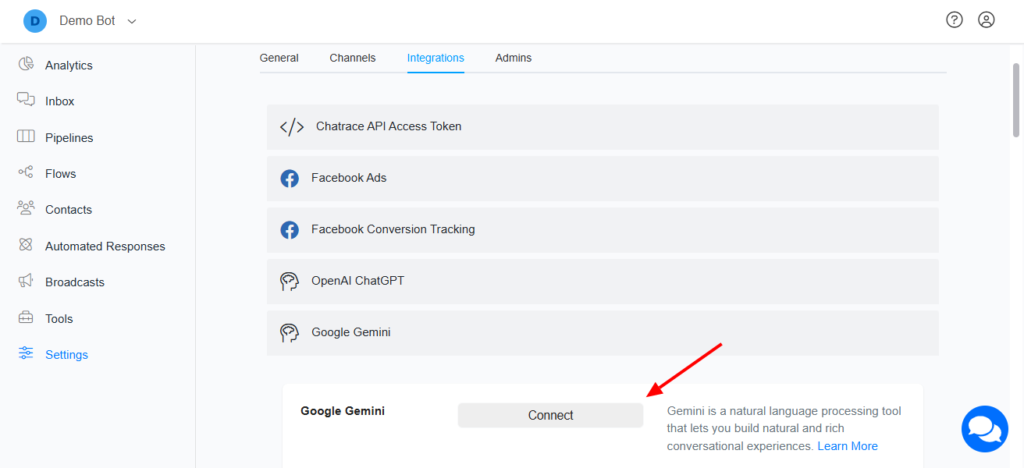
### Connect Google Gemini Integration
* **Goto Settings >>Integration >> Google Gemini**
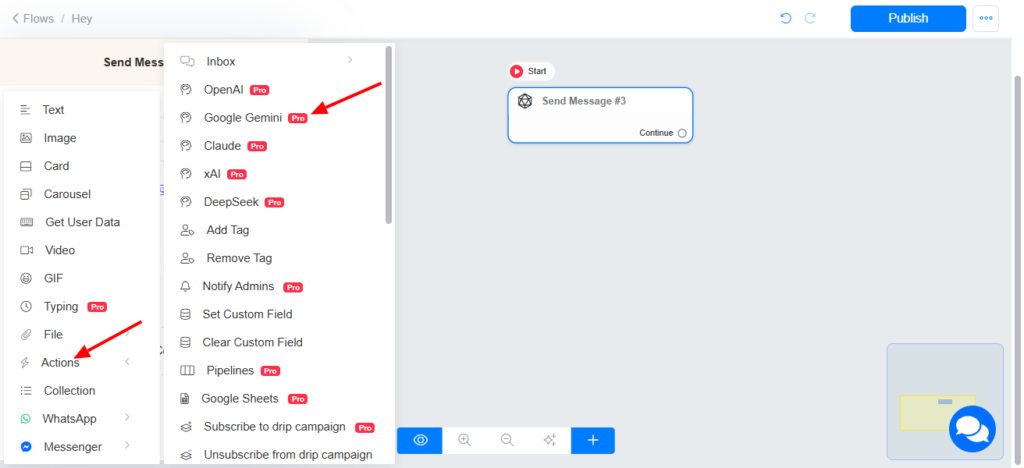
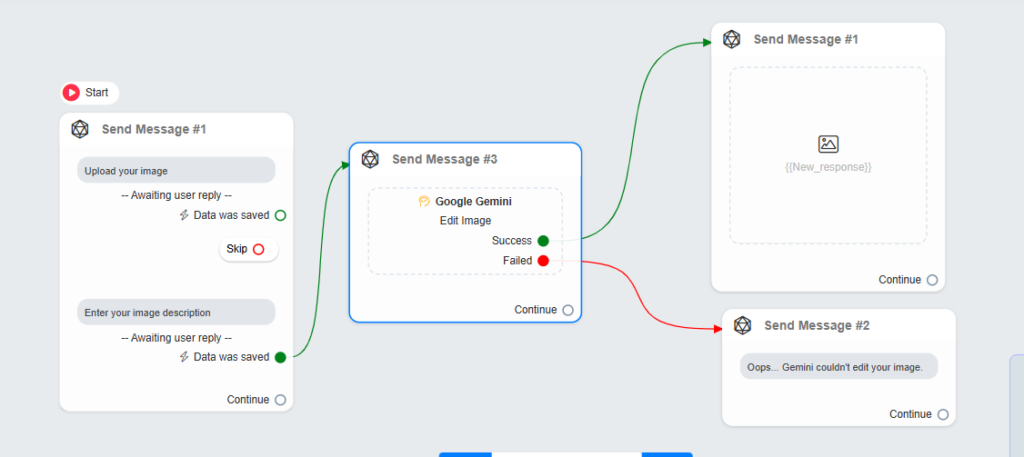
### Google Gemini Action in the Flow Builder
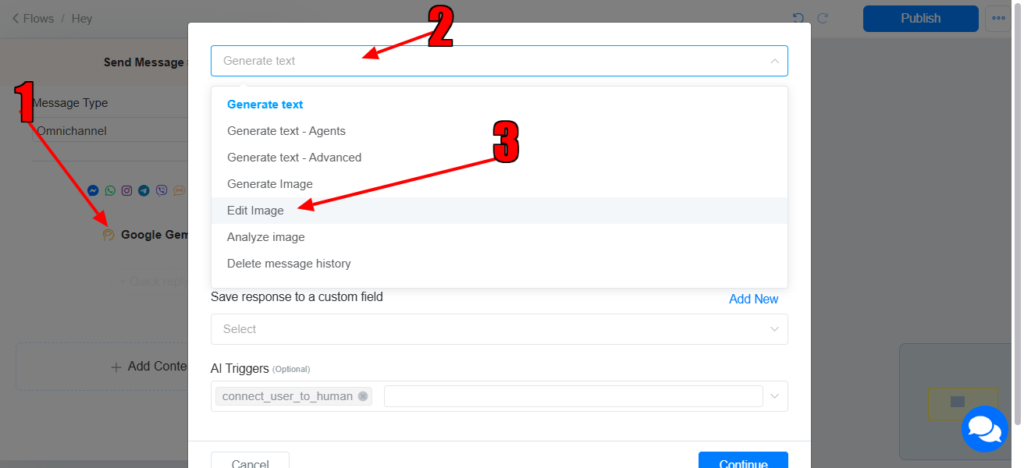
**Action>> Google Gemini >> Edit image**
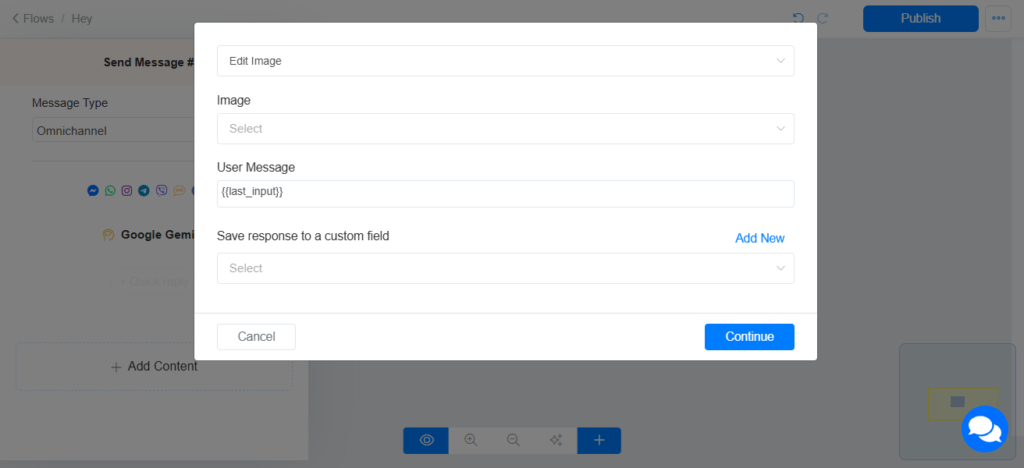
**Select Edit image >> select the image you want to edit >> set the user’s message >> select the custom field to save the output.**
* User’s Message: This refers to the instruction/information about what Google Gemini should do to your image
* Image: This refers to the image you want to edit.
* Output Message: This refers to the custom field where the generated image will be saved. **This custom field will be used on an image block to display the image to the user.**
### Success & Failed Nodes
The Google Gemini action includes both success and failure nodes:
* Success Node: This node allows you to define actions that should occur if Google Gemini successfully edited your image (perform action X).
* Failed Node: This node allows you to manage actions if Google Gemini was unable to edit your image (perform action Y)
---
# Agent Instructions: Querying This Documentation
If you need additional information that is not directly available in this page, you can query the documentation dynamically by asking a question.
Perform an HTTP GET request on the current page URL with the `ask` query parameter:
```
GET https://docx.businessrobots.ai/how-to-edit-an-image-using-google-gemini.md?ask=
```
The question should be specific, self-contained, and written in natural language.
The response will contain a direct answer to the question and relevant excerpts and sources from the documentation.
Use this mechanism when the answer is not explicitly present in the current page, you need clarification or additional context, or you want to retrieve related documentation sections.