Appointment scheduling using OpenAI or Google Gemini

The appointment scheduling manager simplifies the process of scheduling meetings and appointments. It allows your business to share your availability, which others can use to book a time slot.

You can combine OpenAI/Gemini and our Appointment scheduling tool to allow your customer to book an appointment quickly without leaving your bot on any channel, including voice and SMS.

Setup your calendar

Create custom field

Got to Flows > Custom Feilds and create the below custom fields

Name: date_start Type: Date & time

Name: date_end, Type: Date & time

Name: appointment_date Type: Date & time

Name: available_slots Type: Text

Create a flow to check availability.

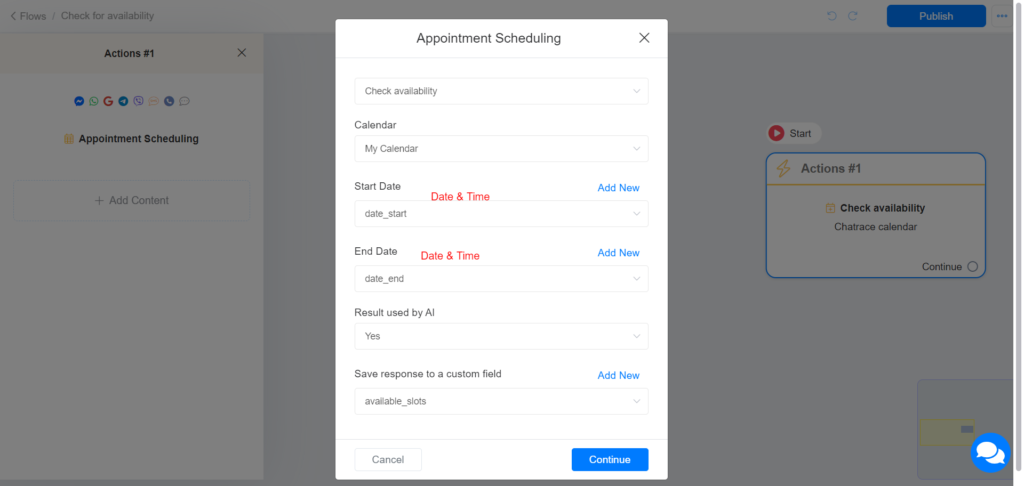
Create a new flow. The name could be “Check Availability”. Add the Actions > Appointment Appointment and choose the option Check Availability.

Create an AI Trigger to check availability.
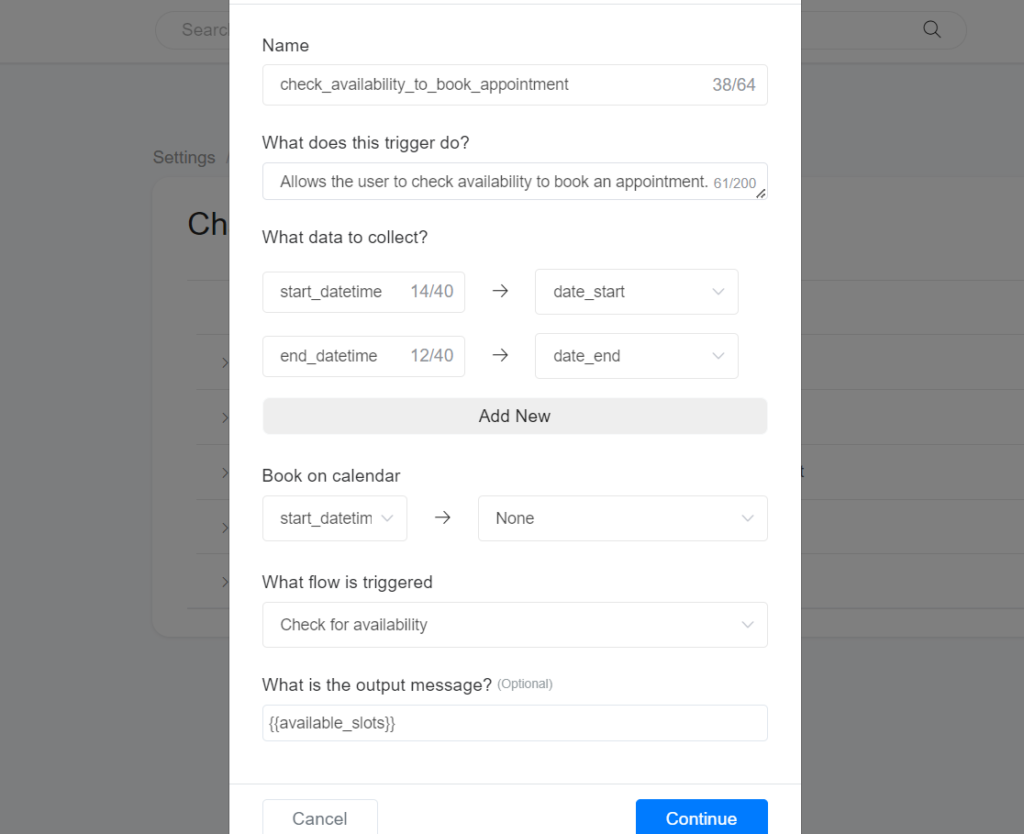
Go to Settings > Integrations > OpenAI OR Gemini > AI Triggers and click the Add new button.

Name: check_availability_to_book_appointment What does this trigger do?: Allows the user to check available slots within a date range to book an appointment. Only check for availability when the user does not provide an exact date and time for the appointment. What data to collect? start_datetime -> date_start end_datetime -> date_end Book on calendar: None What flow is triggered: Check Availability What is the output message? : {{available_slots}}

Create an AI Trigger to Book an appointment.
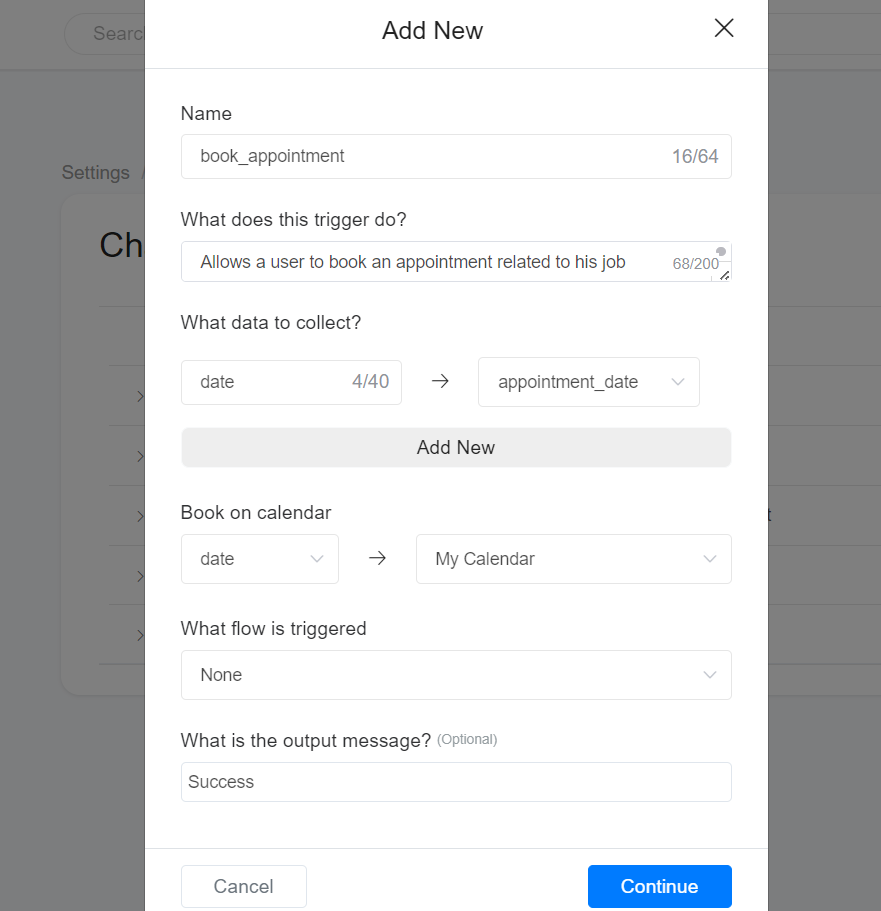
Name: book_appointment What does this trigger do?: Allows a user to book an appointment related to his job application. What data to collect? date -> appointment_date Book on calendar: My Calendar What flow is triggered: None What is the output message? : Success

Enable AI Triggers

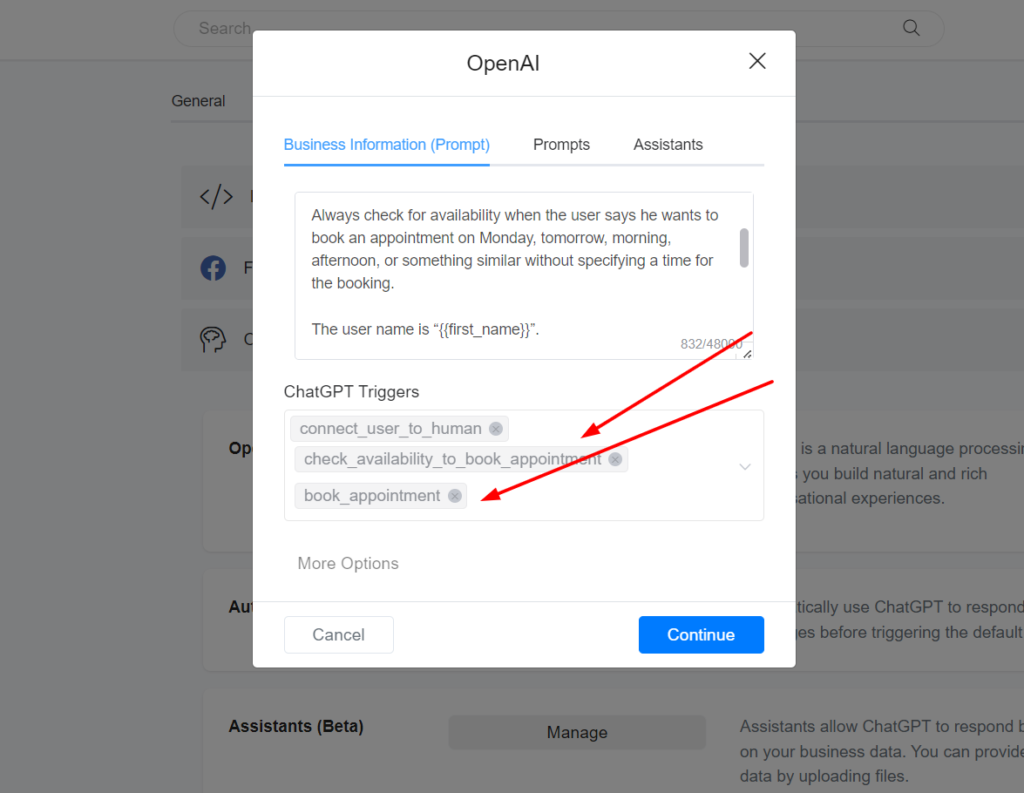
After creating your AI Triggers, you must activate them in OpenAI or Gemini settings or use them inside the OpenAI or Gemini action on the flow builder.

Include the below paragraph in your prompt (optional but recommended). Always check for availability when the user says he wants to book an appointment on Monday, tomorrow, morning, afternoon, or something similar without specifying a time for the booking.

Last updated